Step-by-Step Guide
How to Use StopVeille
with Microsoft Teams
Follow this simple 6-step guide to configure StopVeille and keep your green (available) status on Microsoft Teams automatically.
Follow this simple 6-step guide to configure StopVeille and keep your green (available) status on Microsoft Teams automatically.
Follow these 6 simple steps to stay always available (green) on Teams
Click on the StopVeille extension icon in your Chrome toolbar (top-right corner). The extension popup will open. Scroll down to find the Microsoft Teams section.
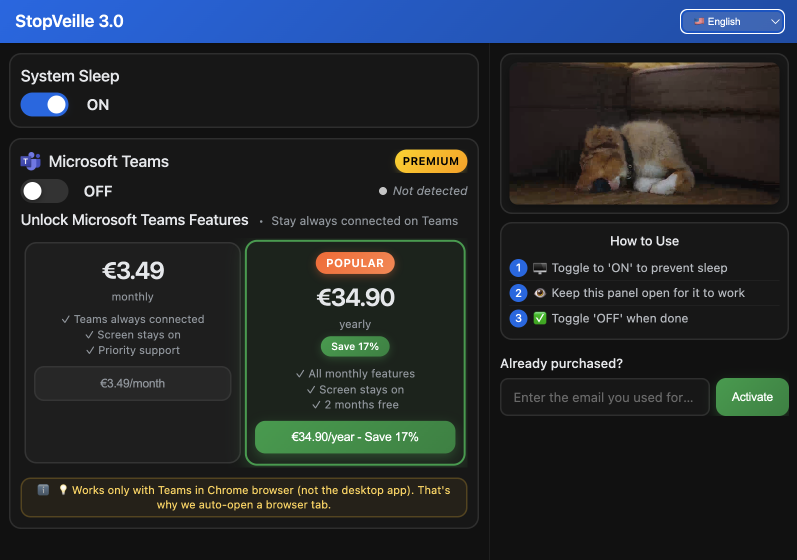
In the 'Already purchased?' section, enter the email address you use to log into Microsoft Teams. This is crucial for the extension to maintain your Teams status.
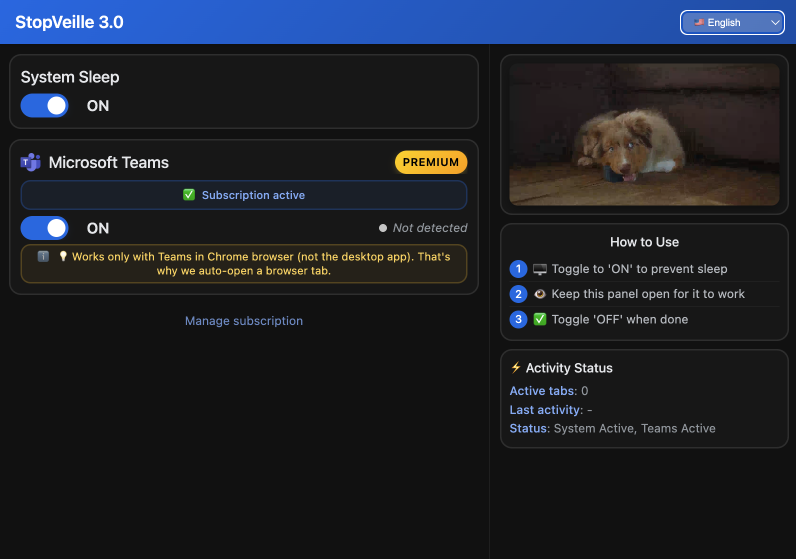
Find the Microsoft Teams toggle switch and swipe it to the right (ON position). The switch will turn blue, indicating that the Teams feature is now active.
The Teams auto-status feature requires a Premium subscription (€3.49/month or €34.90/year)
StopVeille will automatically open Microsoft Teams in a new Chrome tab in the background. This is necessary because the Teams status feature only works with Teams in the browser, not the desktop app.
In the Teams browser tab that just opened, log in using the same email address and password you entered in StopVeille. This synchronizes your status between the extension and Teams.

Congratulations! StopVeille is now active and will keep your Teams status green (available) automatically. You can minimize the extension window but keep it running in the background.
The first time you activate StopVeille with Teams, we recommend closing the extension and reopening it to ensure your connection is properly registered.
When using StopVeille, make sure to keep the extension window visible above other windows. The extension popup must remain visible for you to stay green on Teams.
The Microsoft Teams auto-status feature is only available in the Premium version. The free version keeps your computer awake but doesn't maintain your Teams status.
Upgrade to PremiumFree feature: Keep your computer awake with one click
Click the extension icon, find 'System Sleep' section, and toggle the switch to ON (blue)
That's it! Your computer will now stay awake. Toggle OFF when you're done for the day.
Common issues and how to solve them
Download StopVeille now and never worry about appearing away on Teams again.