Microsoft Teams triggers an "Away" status after just five minutes of keyboard or mouse inactivity, regardless of whether you are actually at your desk reading a long document. It's a frustrating quirk of the software that can make even the most dedicated remote employee look like they've stepped out for a nap.
Does your green dot turn yellow the second you grab a coffee? Since you can't officially change that five-minute timer, I'll help you master the legitimate system settings and calendar tricks to keep your status active without resorting to risky hacks. And when the real culprit is just your PC dozing off, a one-click tool like StopVeille keeps it awake so your genuine presence is what Teams reports.
Stay Active on Microsoft Teams by Understanding Presence Triggers
Teams triggers "Away" after five minutes of inactivity based on keyboard and mouse idle states. System sleep settings and mobile sync often override manual status, while calendar events automate availability during scheduled focus blocks.
The mention of inactivity leads directly into the specific mechanics of the five-minute timer.
Why Your Status Flips to Away After Five Minutes
Teams monitors your mouse and keyboard input constantly. If your peripherals stay still for five minutes, the app assumes you've stepped away. It's a simple inactivity timer built into the software.
The status shifts from user control to system-driven updates. Teams pings your operating system for activity logs. Without recent movement, your green dot turns yellow. This happens even if your windows stay open.
Background processes don't count as activity. Only physical interaction keeps your session alive.
How Multi-Device Usage Affects Your Green Dot
Desktop and mobile apps sync your presence automatically. Usually, the most recent active session dictates your status. Interestingly, mobile apps often stay active longer than the desktop version.
The system aggregates signals from both devices. If you're logged in twice, the priority logic kicks in. Sometimes, a locked phone forces an "Away" status despite your computer being on.
Mobile notifications can briefly wake your status. However, background battery saving on smartphones often kills the connection. This causes those unexpected presence flips you see.
Adjusting Your PC Settings to Stop the Idle Timer
Beyond software triggers, your hardware power settings act as the primary gatekeeper for staying active.
-
Keep Windows awake in Power & Sleep
Raise the screen timeout so the system never locks while you read — a locked screen tells Teams you're gone instantly. If these options are greyed out by an IT policy, see how to prevent Windows 11 sleep without admin rights.
SettingsSystemPower & batteryScreen and sleep
Tip: Laptops enforce stricter idle rules on battery — keep the charger connected for maximum uptime.
-
Stop display sleep on macOS
Prevent the display from turning off on the power adapter so the Teams process stays in the foreground and the five-minute countdown never starts.
System SettingsBatteryPrevent automatic sleeping
Watch out: Manually locking your Mac still overrides this — your status flips to Away the moment the screen goes dark.
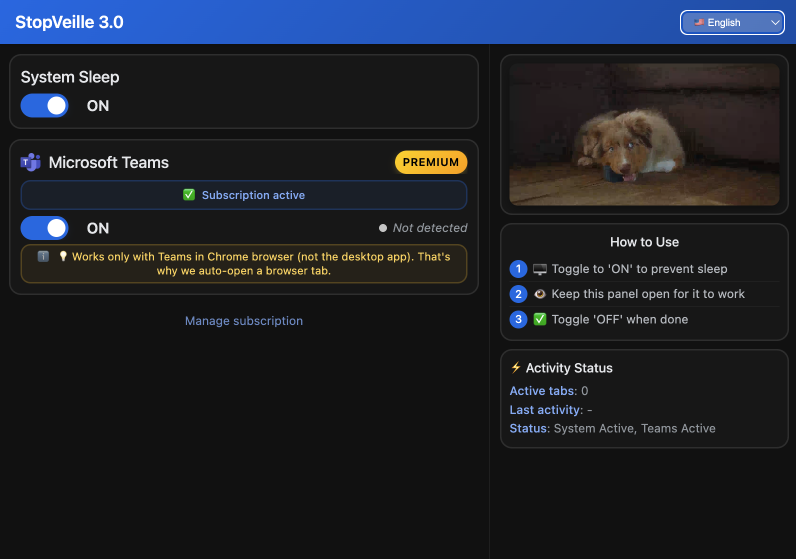
Locked out of these menus entirely? An honest browser alternative is StopVeille: it holds a wake lock from a single Chrome tab, so a dark screen never mislabels you as Away while you are genuinely at your desk reading or thinking.
Leveraging Calendar Integration for Better Visibility
While power settings keep the machine running, your calendar provides the logic for your professional availability.
Scheduling Focus Time to Maintain a Productive Status
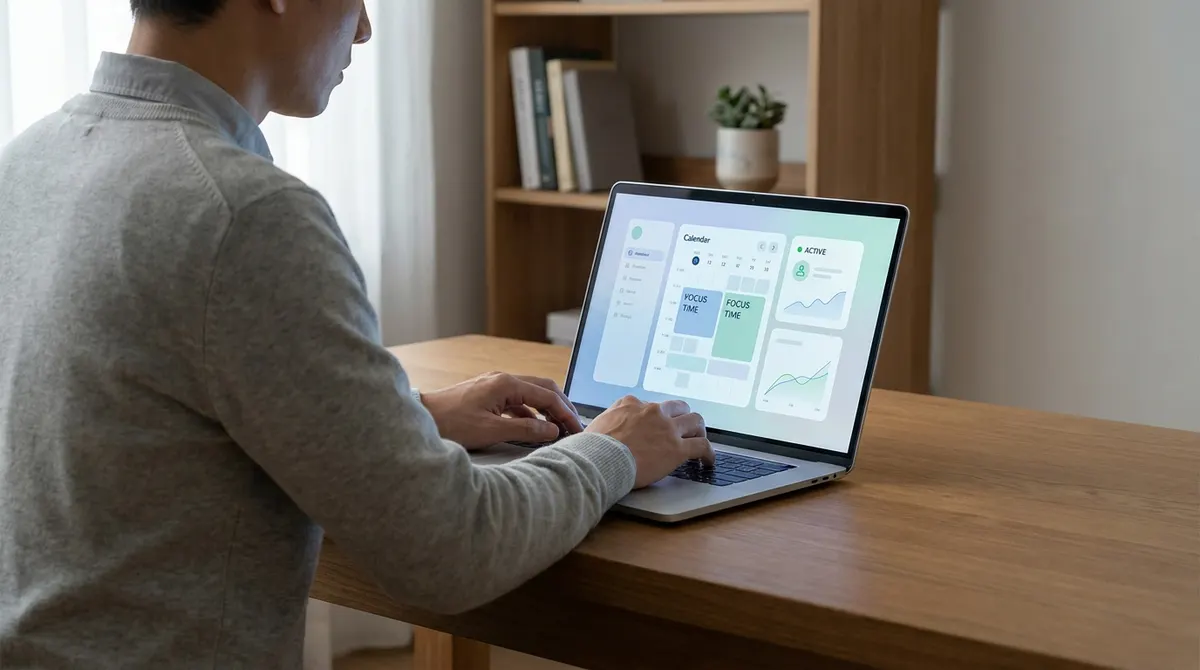
Use Outlook to block out Focus Time sessions. Teams reads your calendar and updates your status to "Focusing." This keeps you active but silences distracting pings.
This method aligns your presence with actual work output. It shows colleagues you are busy with deep work. You won't appear "Away" even if you aren't typing constantly. It creates a professional shield for concentration.
Scheduled blocks are reliable. They automate your visibility throughout the day.
Setting Custom Status Durations for Specific Tasks
Click your profile picture to set a manual status. Choose the "Duration" option to make it temporary. This prevents you from staying "Busy" all night.
Add a status message to provide context. Tell people you are reviewing documents or on a break. This builds trust with your remote team.
Manual overrides take precedence over system idle timers. It is a powerful tool for controlling your digital image.
Professional Boundaries and the Risks of Cheating
Managing your status manually is smart, but using external tools to fake activity carries significant professional danger.
Why Mouse Jigglers and Automation Are Bad for Your Career
Unauthorized scripts or physical jigglers violate most IT policies. They introduce security vulnerabilities into the corporate network. Many companies scan for these background processes.
Detection leads to difficult conversations with HR. Faking activity suggests a lack of actual work. It erodes the trust required for remote flexibility. Managers value results over a constant green light.
Avoid these shortcuts. The risk to your reputation is too high.
Talking to Your Boss About Remote Work Presence
Initiate a conversation about performance metrics. Focus on deliverables rather than the presence indicator. Ask for clear expectations regarding response times during the day.
Explain that deep work requires stepping away from the chat. Suggest a "core hours" approach for meetings. This reduces the anxiety of staying active.
Honest communication beats technical workarounds, and it builds a healthier, more sustainable remote setup. For the ethics of staying green without gimmicks, see how to keep your Teams status active naturally.
By adjusting your power settings, leveraging Focus Time, and keeping your mobile app active, you can maintain a consistent green dot without risky hacks. Stop the idle timer now to ensure your digital presence reflects your actual work. You'll finally master your visibility and stay active on Microsoft Teams the legitimate way.
FAQ
Why does my Teams status keep switching to "Away" so quickly?
It’s the five-minute rule. Microsoft Teams is programmed to flip your status to "Away" if it detects no keyboard or mouse activity for about five minutes. It doesn't matter if the app is open; if you aren't actively clicking or typing, the system assumes you've stepped out.
Your operating system's power settings also play a huge role. If your computer screen dims or goes to sleep, Teams immediately tells everyone you’re gone. It’s a frustrating default, but it’s essentially just a timer waiting for physical input.
Can I change the idle timeout settings directly in Microsoft Teams?
The short answer is no. Microsoft hasn't provided a native setting within Teams to let you adjust that five-minute inactivity window. It’s one of the most requested features, but for now, the app's internal logic is locked down.
However, you can influence it by adjusting your PC or Mac power settings. By preventing your computer from sleeping or locking, you remove the primary trigger that forces Teams into "Away" mode while you're still at your desk reading or thinking.
How do I stay active on the Teams mobile app when I'm away from my desk?
The mobile app is a bit of a different beast. To stay "Green," you need to keep the Teams app in the foreground. If you switch to another app or let your phone screen lock, you'll drop to "Away" almost instantly.
A pro tip is to adjust your phone's "Auto-Lock" or "Screen Timeout" settings to "Never" while you're working. If you keep the phone plugged in with Teams open on the screen, you’ll stay active even if you’re just grabbing a quick coffee in the kitchen.
Is it possible to show as "Available" while I'm actually in a meeting?
By default, Teams will show you as "In a meeting" or "Busy" based on your calendar. If you want to look "Available" instead, you can manually override it. Just click your profile picture, select your current status, and manually pick "Available."
Keep in mind that using a "Duration" for this manual status is a smart move. It ensures your status resets to normal once the meeting is over, so you don't accidentally look like you're working at 3:00 AM because you forgot to change it back.
What are the risks of using a mouse jiggler to stay active?
Honestly? It’s risky business. While a physical or software mouse jiggler keeps that dot green, many IT departments can detect the background processes or the repetitive, unnatural movement patterns. It can lead to some very awkward conversations with HR about "time theft."
Beyond the disciplinary risk, it erodes trust. If you're caught faking activity, it’s hard to win back the flexibility of remote work. It’s always better to use legitimate methods like adjusting power settings or scheduling "Focus Time" via Viva Insights.
Does "Focus Time" help me stay active on Teams?
Absolutely. When you schedule "Focus Time" through the Viva Insights app, Teams updates your status to "Focusing." This is a legitimate, productive status that tells your colleagues you are working hard on a specific task and shouldn't be interrupted.
The best part is that it silences distracting notifications while keeping you firmly in the "active" category. It’s a professional way to shield your time without looking like you’ve disappeared from your keyboard.
How do I fix a Teams status that seems stuck on "Away" or "Offline"?
If you're actually working but Teams won't turn green, you're likely dealing with a sync glitch. The quickest fix is to sign out of Teams on all devices, desktop and mobile, and then sign back in. This usually forces a fresh handshake with Microsoft's servers. For every way to keep that green dot — including browser extensions and other tools — see how to stay available on Microsoft Teams.
If that doesn't work, you might need to clear the Teams cache. On Windows, you can do this by deleting the files in the %appdata%\Microsoft\Teams folder. It sounds technical, but it’s a standard "turn it off and back on again" move for the cloud era.