Do you spend more time cursing your Teams status turning orange than actually working? Who hasn't lost a minute fiddling with settings while a colleague was urgently tagging them on Microsoft Teams? This guide reveals how to stay available on Teams (green) without pulling your hair out. We explain why your dot goes to "away" the moment you grab a coffee, how to work around it with clever tricks (a key wedged under a book) or tools like the StopVeille Chrome extension, so you avoid juggling between Windows and Mac. No more false "away" statuses: stay green, even when you're not in front of your PC.
If you're in a hurry: Teams changes your status based on system activity, not just app usage. Staying "green" depends on Windows/Mac settings. The solution? Block sleep mode or use StopVeille. Five minutes of inactivity is all it takes to switch over. Installing the free extension avoids these automatic switches.
Why does your Teams status switch to "Away" on its own?
You're in the middle of a conversation with a colleague, you stand up for two minutes... and boom, your green status turns orange. Frustrating, right?
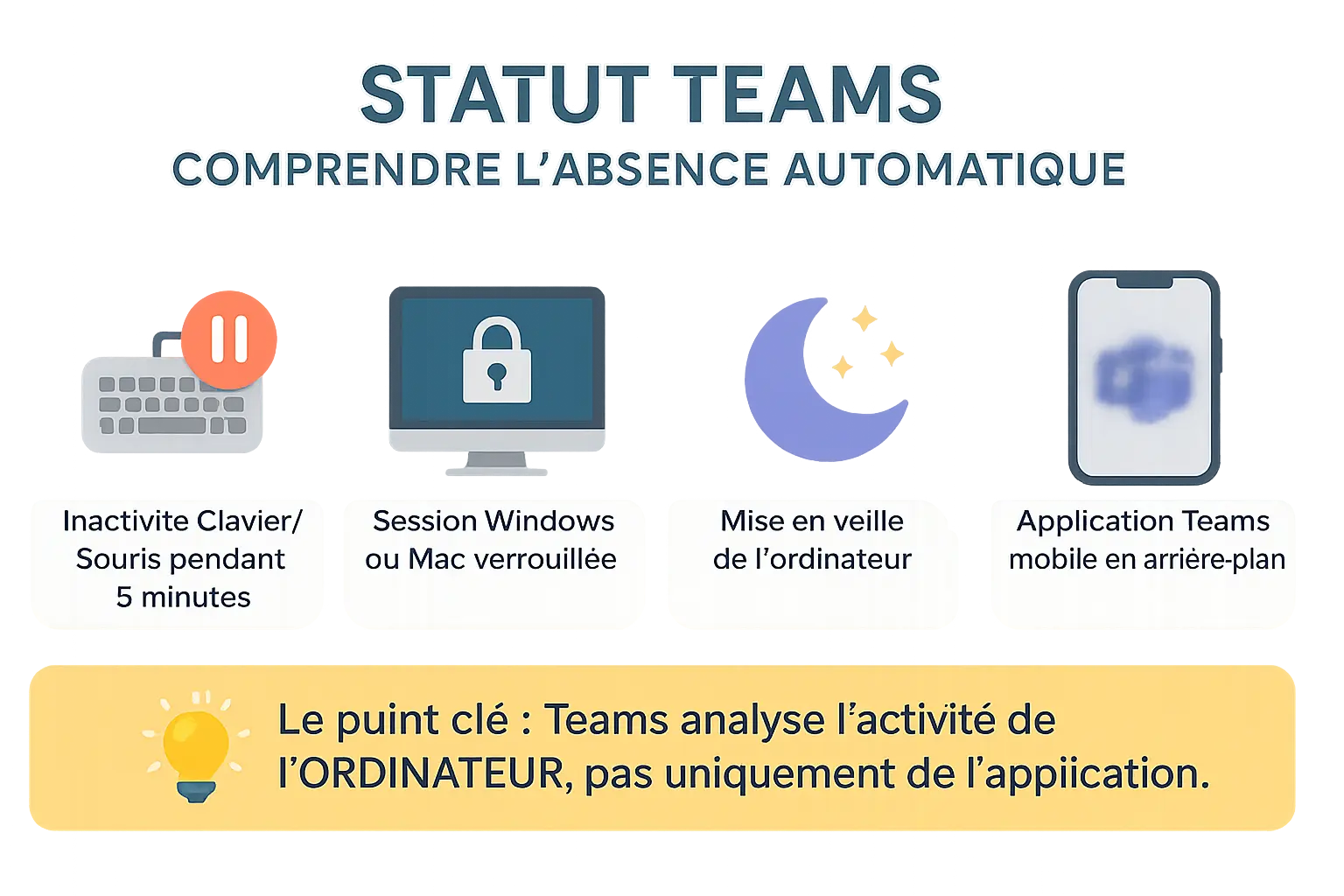
It's not a bug, it's a feature. Teams adjusts your status based on your computer's activity, not just the app's. Its goal? To show whether you're really available. For example, if you take a call and walk around while talking, your machine stays active thanks to tools like StopVeille.
- 5 minutes of keyboard/mouse inactivity: Teams detects a pause, even if you're chatting with a colleague
- Locking your session: useful for security, but it triggers an "Away" status
- Putting the computer to sleep: handy for saving energy, but it penalizes your status
- Teams in the background on mobile: the app sleeps, so as far as your contacts are concerned, so do you
Teams doesn't track your activity inside the app, but the state of your machine. An important nuance. A tool like StopVeille (in its paid version) can keep your status green by preventing sleep.
StopVeille, for example, in its free version, keeps Chrome active but doesn't prevent untimely orange statuses on Teams. And as you've understood, in its paid version it lets you keep your status available on Teams (green, of course).
Warning: check your company's rules before using these tools. They must not circumvent internal policies. For instance, if your company forbids software that changes the behavior of work tools, it's better to avoid these extensions.
What is it useful for in practice? On a work call, a delivery arrives? One click on StopVeille, your computer stays active, no "Away" status. In a meeting, an idea comes to you? You jot it down immediately without waiting for your machine to wake up. These tools adapt to the unexpected moments of remote work, where every second counts.
Changing your status manually: Teams' built-in options
You need to stay reachable, but Teams switches to "Away" mode as soon as you look away? Here's how to take back control, even if it's only temporary.
Force the "Available" status
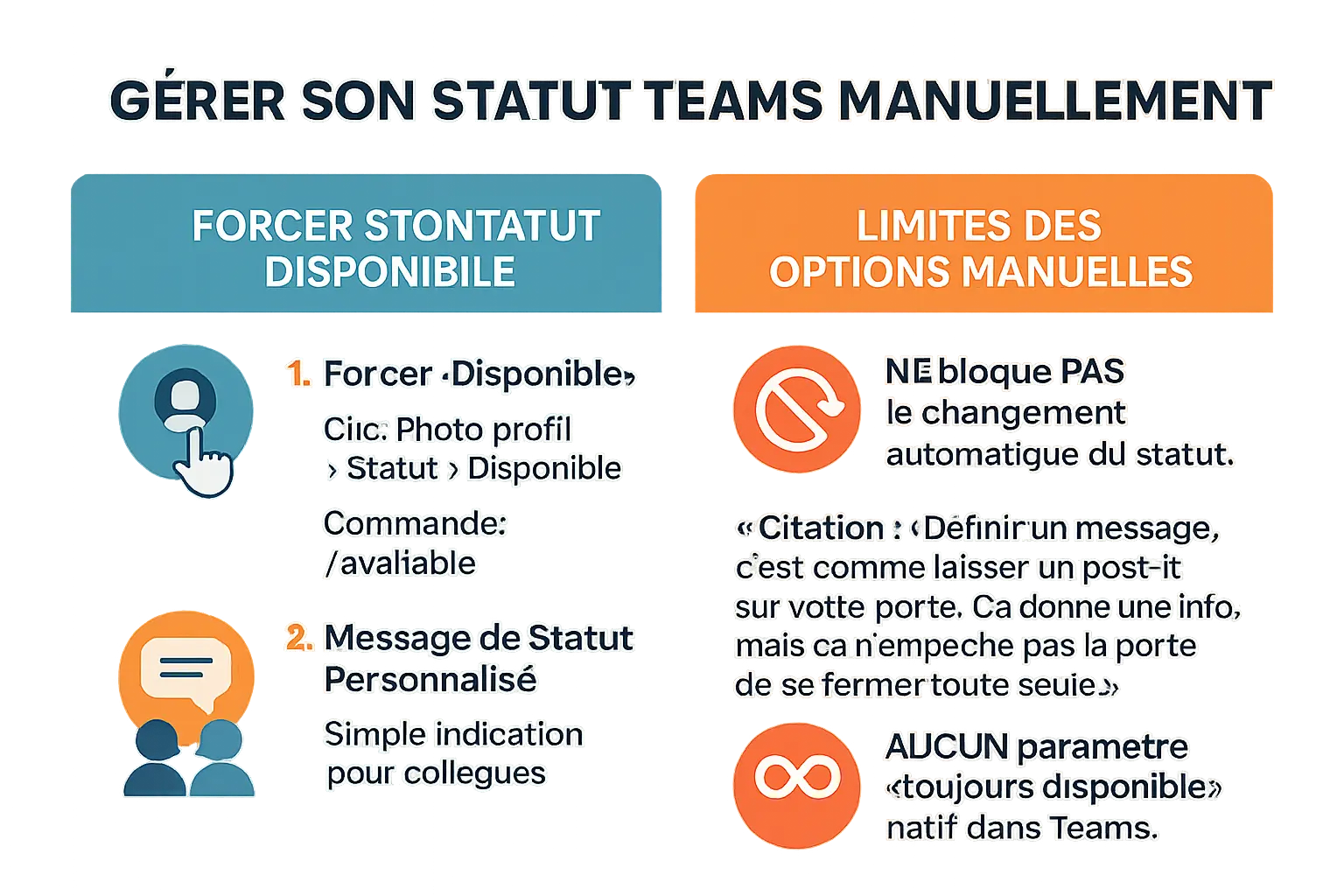
TeamsYour profile pictureAvailable
Click your profile picture at the top right of Teams. Select "Available" from the list. Simple, fast. Another trick? Type /available in the search bar. No need to click all over the place to stay active for a few moments.
No magic here: the status goes back to "Away" if you leave the app or let the computer sleep.
Set a status message
You can add a custom message, like "Available, feel free to reach out." But be careful: this does not block the switch to "Away". It's just a digital sticky note.
Setting a message is like leaving a sticky note on your door. It gives information, but it doesn't stop the door from closing on its own.
Also be aware that there is no native "Always available" setting in Teams. Microsoft anticipates your inactivity to adjust your status. So if you want to stay online without interruption, you'll have to go through third-party extensions... to be used while respecting your company's guidelines.
How to stay available on Teams without installing anything
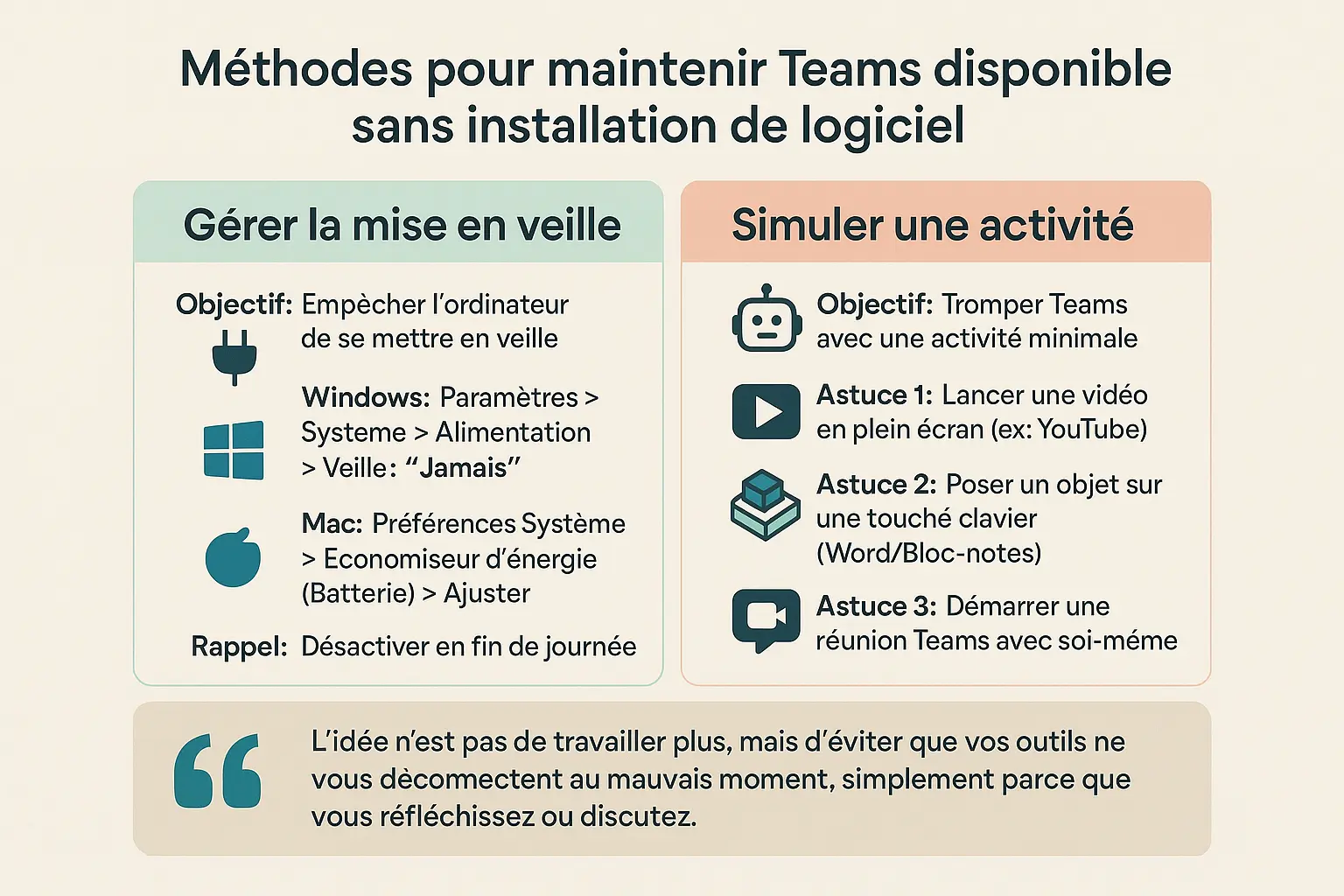
You're in a meeting, your computer shuts off, and your Teams status turns "Away." The result: your colleague waits for you to come back, when you were just jotting down a detail. To avoid these interruptions, here are solutions without any software, and without an installation blocked for security by your technical teams, ideal for staying connected when you're juggling tasks.
Change your system's sleep settings
Teams checks whether your screen is active or whether the computer is asleep. Block these modes to stay "Available." No admin rights to change these settings? Our guide on how to prevent Windows 11 sleep without admin rights lists workarounds that need no installer.
- On Windows: Open Settings → System → Power & sleep. Set Sleep and Turn off screen to Never (or a very long duration, like 4 hours).
- On Mac: Go to System Settings → Battery. Move the sliders to disable deep sleep and adjust the screen-off delay.
Warning: remember to re-enable these settings at the end of the day to avoid excessive energy consumption.
Simulate activity to trick Teams
Teams stays active if a process runs in the background. Here are some quick tricks:
- An object on the keyboard: Open a Word document, place a pen or a paperclip on a key. This generates a "phantom" keystroke and prevents sleep. Not practical at all, but it works within the limit of the characters typed
- A built-in Windows tool: Click the Start menu, type Command Prompt and choose Run as administrator. Enter this command:
powercfg -request. This temporarily blocks sleep, with no installation, but it won't prevent Teams from turning orange if your company has blocked this kind of command.
The goal? To keep your tools from disconnecting you at the wrong moment, simply because you're thinking or stepping away to answer the phone.
These methods are temporary, but they prevent untimely disconnections (though you're still very likely, even 100%, to end up orange on Teams eventually). If you're looking for a more stable solution, tools like StopVeille (a free Chrome extension) exist, but always check your company's rules before using third-party apps. Sometimes a simple setting is enough to align your status with your real availability.
External tools: the solution for peace of mind
You need to keep your Teams status green, but your computer goes to sleep the moment you turn your back? It's a common problem when you juggle several tasks. Fortunately, solutions exist to automate the process. How about we talk about tools that do the job for you?
Browser extensions: the StopVeille example
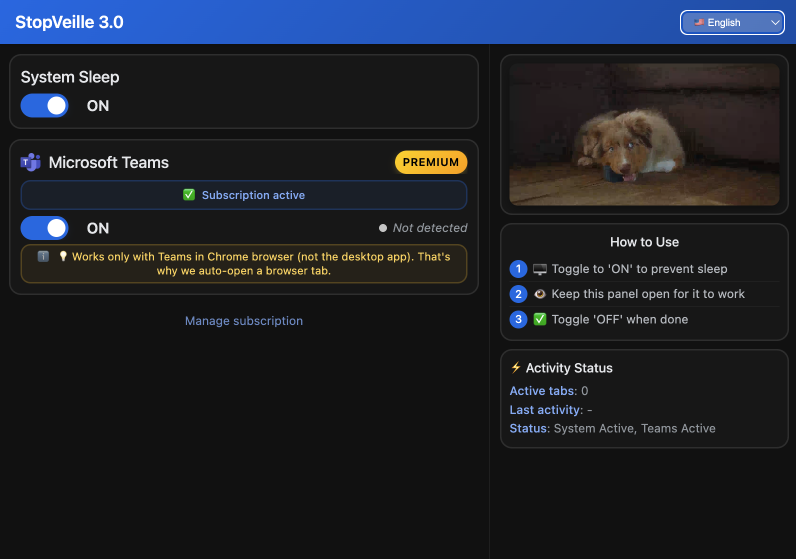
StopVeille is the Chrome extension that changes the game. Its principle? Keeping your browser active to prevent the PC from sleeping. And since it adapts to your Teams, your Teams status stays "Available" or "green" without you having to move a muscle. See exactly how it's set up.
The free version prevents the computer from sleeping. The paid version keeps the Teams status green even when you're away. Handy when you take a call on the move or need to jot down an idea in a meeting. Your colleague doesn't wait on an "Away" status, and you save time.
"Mouse jiggler" software
Another available option: "mouse jiggler" software like Caffeine or Amphetamine (for Mac). It discreetly simulates mouse movements or keystrokes to trick the system. Your computer thinks you're active. Perfect for noting urgent information without cutting the thread of a conversation. However, they require an installation on your machine, and it's often blocked by your security and IT teams.
| Method | Principle | Ideal for... | Limits |
|---|---|---|---|
| Manual change | Force the "Available" status via the Teams menu | A quick, one-off fix | Automation takes over after 5 min of inactivity |
| Sleep settings (OS) | Prevent the computer from sleeping | Corporate PCs where nothing can be installed | You must remember to re-enable it. May use more energy |
| "Homemade" trick | Simulate simple system activity | A backup solution, no configuration | Not discreet, only moderately practical day to day; Teams status turns orange quickly |
| StopVeille extension | Keeps the browser active to prevent sleep | Users who work a lot and take long breaks | Requires Chrome and respecting company policy |
Using these tips wisely: a few practical cases
Why would you want to stay "green" on Teams at all costs? The answer comes down to the flow of your day. Picture yourself in the middle of a phone conversation. You get up to walk while noting a detail. Your computer stays active thanks to StopVeille, avoiding waiting times or painful reconnections. The paid version even keeps your status green if you step away for a few minutes, without your machine falling asleep. Handy for staying reachable without being glued to the screen.
- An urgent call: you answer, you move around, your notes are saved without interruption. The computer doesn't sleep, the conversation stays smooth. Even if the other person shares a document to review in real time, your screen stays active
- A parcel delivered to your home: one click on the Chrome extension, you grab the parcel and get back to work. No risk of your status turning orange during those few minutes away. Your team sees your green status, but you handled the interruption stress-free
- An idea in a meeting: you note it immediately. No one sees your status change, and you keep the thread of the discussion. An advantage when debates come one after another with no pause
The goal isn't to deceive, but to avoid pointless micro-interruptions. If you leave your desk for more than 5 minutes, it's better to clearly signal it. Your status stays green? Great. But trust between colleagues is built on honest exchanges, not on technical shortcuts. These extensions are useful for short absences, not for creating a fake permanent availability. For the professional angle — presence expectations and the real career risks of faking activity — read how to stay active on Microsoft Teams the legitimate way. Use them with discernment, in line with internal rules and professional best practices.
You've got it: keeping your "Available" status on Teams is possible! Teams reacts to system inactivity, but adjust your computer's sleep settings, use tools like StopVeille or "homemade" tricks to stay connected.
See also: How to keep your Teams status active and green naturally · How to stay active on Microsoft Teams the legitimate way
FAQ - the most frequently asked questions about staying available on Teams
How do I stop Teams from going to Away?
Ever had that thing that pulls you out of your focus zone? Teams switching to "Away" the moment you look up? It's normal! The app monitors your system activity, not just your mouse. To stay "Available," you have two options: prevent your computer from sleeping, or use extensions like StopVeille to keep Chrome active. The best part? Lightweight tools with no installation, like a Chrome extension.
How do I make Teams always green?
The green status is the promise of being reachable without interruption. But Teams is a pain: it decides all on its own to set you to "Away" at the slightest blink. The solution? StopVeille acts as a guardian by preventing your screen from turning off. No installation possible? No problem, StopVeille is a Chrome extension, so no need to install anything on your PC/Mac.
How do I make myself unavailable on Teams?
You too dream of disappearing off the radar sometimes? Teams has a "Do not disturb" feature you enable in 2 clicks. Just click your profile picture, choose the status, and done: notifications stop. Need to be more specific? Set a message ("Deep focus") or schedule an "Out of office" status for your holidays. Colleagues see that you'd rather be left alone without taking you for a ghost.
How can I be available on Teams?
Simple as can be: click your profile picture in Teams, select "Available" and... that's it! But Teams has a short memory, because at the slightest locked screen it goes back to away (orange).
How do I increase the inactivity time on Teams?
Teams only gives you 5 minutes of respite before slapping "Away" on you? That's frustrating when you're juggling 15 tabs! The no-hassle solution: StopVeille for Chrome is your ally.
How do teams know if I'm inactive?
Teams is an activity detector 2.0. It watches whether your keyboard/mouse moves, whether the screen is locked, or whether your phone is asleep. Even your meetings count as "activity." So you don't need to fidget to prove you're working: a lit screen plus tools like StopVeille are enough. Bonus: you avoid the "Away, last active 2:30 PM" that freaks out your colleagues.