Windows 11 default settings now trigger sleep mode in as little as three minutes to save energy. But when you're in the middle of a long download or a critical task, that quick timeout is more of a hurdle than a help.
It's incredibly frustrating to find your screen locked and your progress halted just because you don't have the admin password to change power plans. This guide shows you how to prevent your computer from sleeping on Windows 11 using clever built-in workarounds and portable tools that require zero installation rights. If you live in your browser, a one-click Chrome extension like StopVeille can do the same with nothing to install — but we'll start with the free, built-in tricks first so you can keep your status green and your workflow moving.
Windows 11 Sleep No Admin: Navigating System Restrictions
Prevent Windows 11 sleep without admin rights by using native Media Player loops, PowerPoint presentation mode, or portable user-space tools like Caffeine. These methods bypass grayed-out Power & Sleep settings often locked by organization-managed Group Policies.
Understanding how your machine handles downtime is the first step toward a fix.
Screen Timeout vs. System Sleep Modes
Your monitor turning off isn't the same as your PC sleeping. The screen timeout simply cuts power to the display to save energy. Meanwhile, system sleep pauses the CPU and puts your entire workstation into a low-power state.
You can find these distinct timers under the "Power & battery" section in Settings. Even on restricted work laptops, you might still have the ability to change the screen timer. This is often separate from the actual sleep lock.
Why does this distinction matter to you? It lets you pick the right workaround. If only the screen is locked, a simple video loop might be all you need to stay active.
Identifying Organization-Managed Restrictions on Your PC
Ever see that annoying red text saying "Some settings are managed by your organization"? That's a clear sign of a Group Policy in effect. It means your IT admin has hard-coded your power plan to their liking. Here is exactly where to look:
SettingsSystemPower & batteryScreen and sleep
If those sliders are grayed out, the policy is active. To confirm the usual cause — a domain-joined machine — check your device details:
SettingsSystemAbout
Domain machines usually feature grayed-out menus that won't let you click or slide any power settings at all. These restrictions leave you feeling stuck with a PC that naps every five minutes. It's frustrating, but it sets the stage for using non-system workarounds. Since you can't change the settings, you have to simulate activity instead.
3 Simple Ways to Keep Your Screen Active Without Software
Since system settings are often locked, you can lean on features already built into Windows to make the OS think you're busy. Here are three no-install ways to keep your screen active — each takes under a minute to set up.
-
Loop a muted video in Media Player
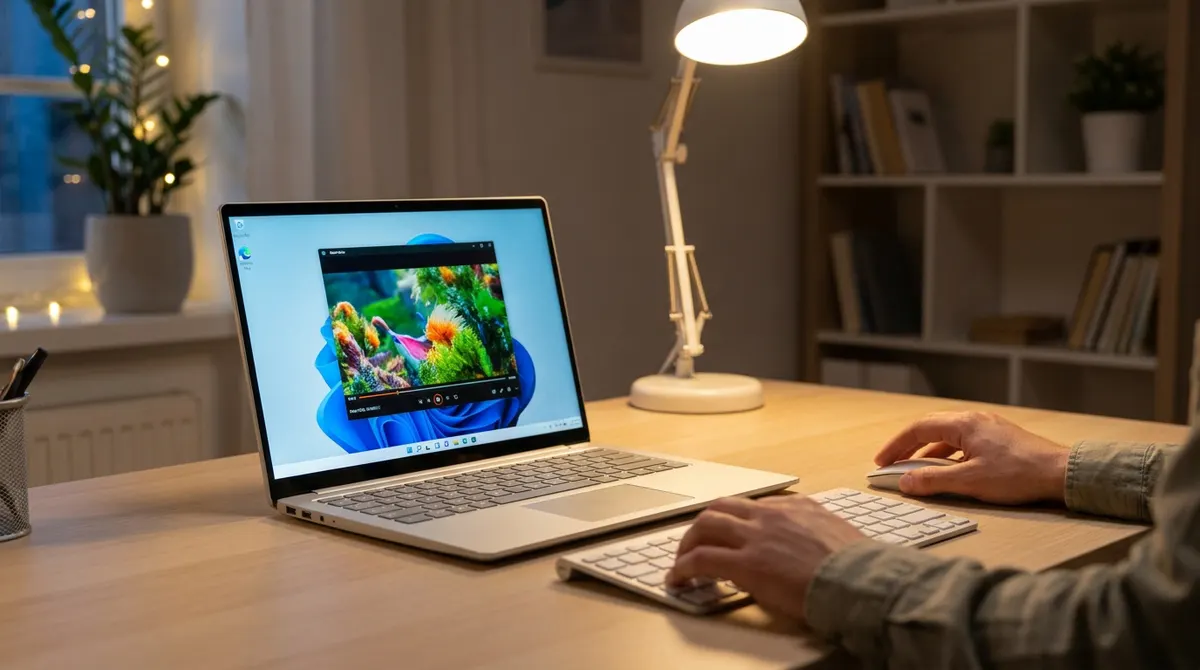
Open the native Media Player app, load any long video or audio file, then turn on Repeat and mute the volume. An active media stream tells Windows the computer is in use, so it overrides the idle timer — this works even on tightly locked corporate laptops.
Tip: A single 10-minute clip on repeat is enough — the idle timer never reaches zero as long as something is playing.
-
Run a blank PowerPoint slideshow
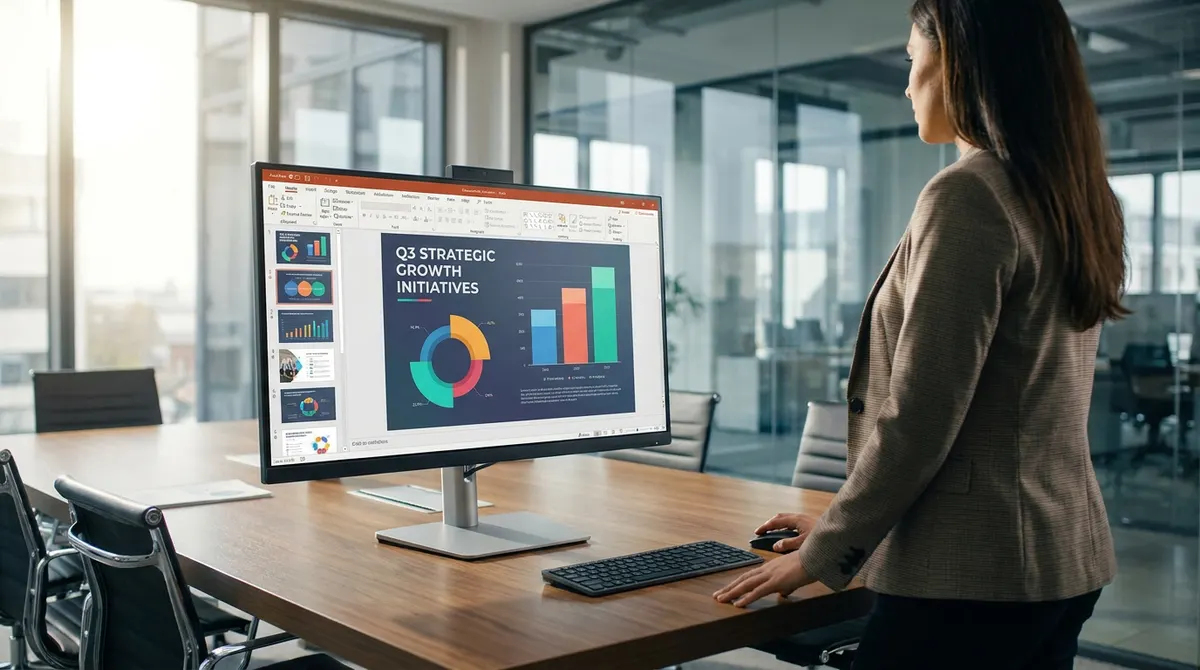
Open a blank presentation, then start the show from the ribbon: Slide Show → From Beginning (or just press F5). Windows disables sleep during a slideshow to avoid blackouts mid-meeting, and you don't need admin rights for it.
Tip: Press Alt + Tab to work in another window — the slideshow keeps running in the background and your session stays awake.
-
Let your browser hold the session
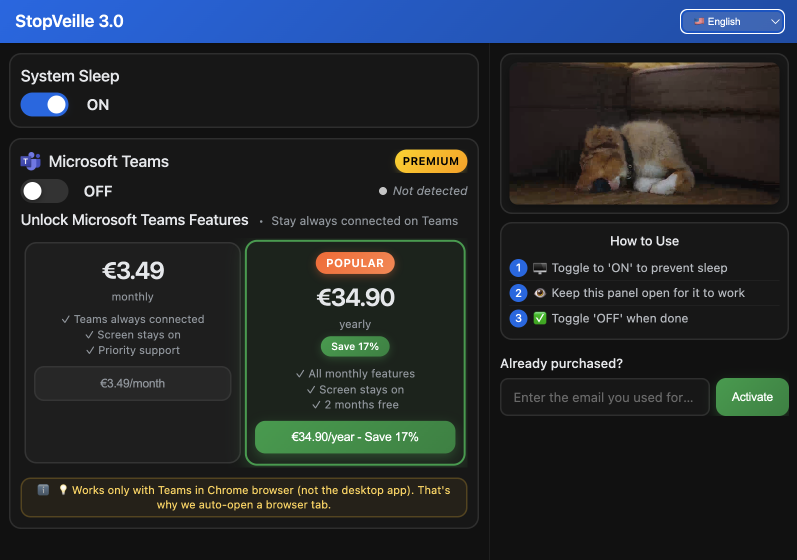
If you spend the day in Chrome, skip the manual tricks and let the browser keep the machine awake for you. A single-tab extension like StopVeille requests a system wake lock the moment you switch it on — no video to babysit, no file to keep open, and nothing to install. It's the cleanest of the three when browser extensions are your only allowed software.
Portable Tools That Bypass the Need for Installation
If native tricks aren't enough, small portable utilities can simulate activity without requiring a full software installation.
If you spend your day in the browser, an even lighter option is a Chrome extension like StopVeille: it keeps your computer awake and your Microsoft Teams status green from a single tab, with nothing to install and no admin rights to request. It is a good fit when your restrictions block .exe files entirely but still allow browser extensions. See the setup guide, or read the full Teams playbook in how to stay active on Microsoft Teams the legitimate way.
Running Caffeine or Don't Sleep From a USB Drive
Portable apps like Caffeine or Don't Sleep are tiny executables. They do not need an installer. You just double-click the .exe file to start them immediately.
These tools work by simulating a keypress every minute. Usually, they toggle an invisible key like F15. This keeps the user-space active. It prevents the idle timer from reaching zero without changing registry keys.
Since they run in the user context, no admin password is required. They are ideal for restricted work environments.
Executing a Basic PowerShell Script in User-Mode
You can write a one-line PowerShell script. It can toggle the Scroll Lock key periodically. This keeps the session "green" on corporate chat software without extra software.
You can run this in the standard terminal. Most users have permission to run basic scripts. It does not require modifying system-wide execution policies in many cases.
This method is very discreet. It leaves a minimal footprint on the system. It is a favorite for those who want a custom, tech-savvy solution without downloads.
Physical Solutions and Hardware Health Considerations
When software methods are blocked by strict monitoring, physical hardware provides a completely undetectable alternative.
Investing in a Mechanical Mouse Jiggler
A mechanical jiggler is a physical platform. You place your mouse on it. It moves the cursor physically using a rotating disk or a small motor.
These devices are undetectable. The computer only sees standard mouse movement. No software is running, so corporate IT scanners find nothing suspicious in the process list.
It is the ultimate "set and forget" tool. It works regardless of any software security layers.
Balancing Constant Uptime with Hardware Longevity
Keeping a PC awake 24/7 has consequences. Screen burn-in is a real risk for OLED or older monitors, cooling fans wear out faster, and your electricity bill climbs. Treat "always awake" as a tool for specific tasks, not a permanent state.
A few habits keep the damage in check: turn the monitor off by hand while the PC stays awake, drop the brightness to its lowest setting if the screen must stay on, and switch the workaround off the moment you no longer need it. For a broader walkthrough that covers both Windows and macOS, see our complete guide to keeping your computer awake.
Used deliberately, these tricks bypass a locked sleep timer without touching a single system setting — so your PC stays active, your status stays green, and you stay in control right up until the next timeout would have hit.
FAQ
Why is my Windows 11 sleep setting grayed out or locked?
Ever seen that annoying red text saying "Some settings are managed by your organization"? That's a sign your company has locked your power plan via Group Policy. It's a common move for IT departments to enforce energy savings or security protocols, which unfortunately leaves you stuck with a screen that goes dark every few minutes.
What's the difference between my screen turning off and the PC sleeping?
It's easy to mix them up, but they're separate timers. Screen timeout just kills the display to save power, while the PC stays active in the background. System sleep is the deep stuff, it pauses your CPU and saves your session to RAM. Knowing this helps because sometimes you can still tweak your screen timer even if the sleep mode is totally locked down by your admin.
How can I keep my laptop awake without having admin rights?
You don't need to be a tech wizard to bypass these restrictions. You can use native "tricks" like playing a muted video on a loop in Media Player or keeping a PowerPoint presentation open in full-screen mode (F5). These activities signal to Windows that the computer is "in use," effectively blocking the idle timer from kicking in.
Are there any portable tools to prevent sleep without an installer?
Absolutely. You can use "no-install" apps like Caffeine or Don't Sleep. These are tiny executables you can run straight from a USB drive or your downloads folder. They work by simulating a tiny, invisible keypress, like F15, every minute. Since they don't actually change system files or registry keys, they usually run perfectly fine under a standard user account.
Can I use a script to stop my computer from locking?
If you're feeling a bit tech-savvy, a simple PowerShell script can do the heavy lifting. You can write a one-liner that toggles the Scroll Lock key periodically. It's a very discreet way to keep your status "green" on chat apps and prevent sleep without downloading any third-party software that might trigger IT department red flags.
Is using a mechanical mouse jiggler a safe alternative?
If your company has super strict software monitoring, hardware is the way to go. A mechanical mouse jiggler is a physical platform that moves your mouse for you. Since there's zero software involved, it's completely undetectable by IT scanners. It's the ultimate "set and forget" solution for keeping your session alive regardless of security policies.
Will keeping my PC awake all the time damage the hardware?
It can definitely take a toll if you aren't careful. Leaving your screen on 24/7 risks burn-in, especially on OLED displays, and wears out your cooling fans faster. To play it safe, just turn off your monitor manually while these tricks keep the actual PC awake in the background. Only use these workarounds when you truly need them to save on electricity and hardware life.